Add Server and Subscribe: Add your existing details to Home
First, identify what you have: a subscription link, a server share link, a QR code, or server details such as an address, port, and authentication parameters. A subscription usually provides a group of servers that can be updated; manually entered details usually describe a single server. The setup steps differ: don’t enter a subscription link in the Host field for a single server, and don’t guess the protocol based on how a link looks. Leave the connection switch off while importing so you can check that the server entry is complete first.
Have a Subscription Link? Use Subscribe
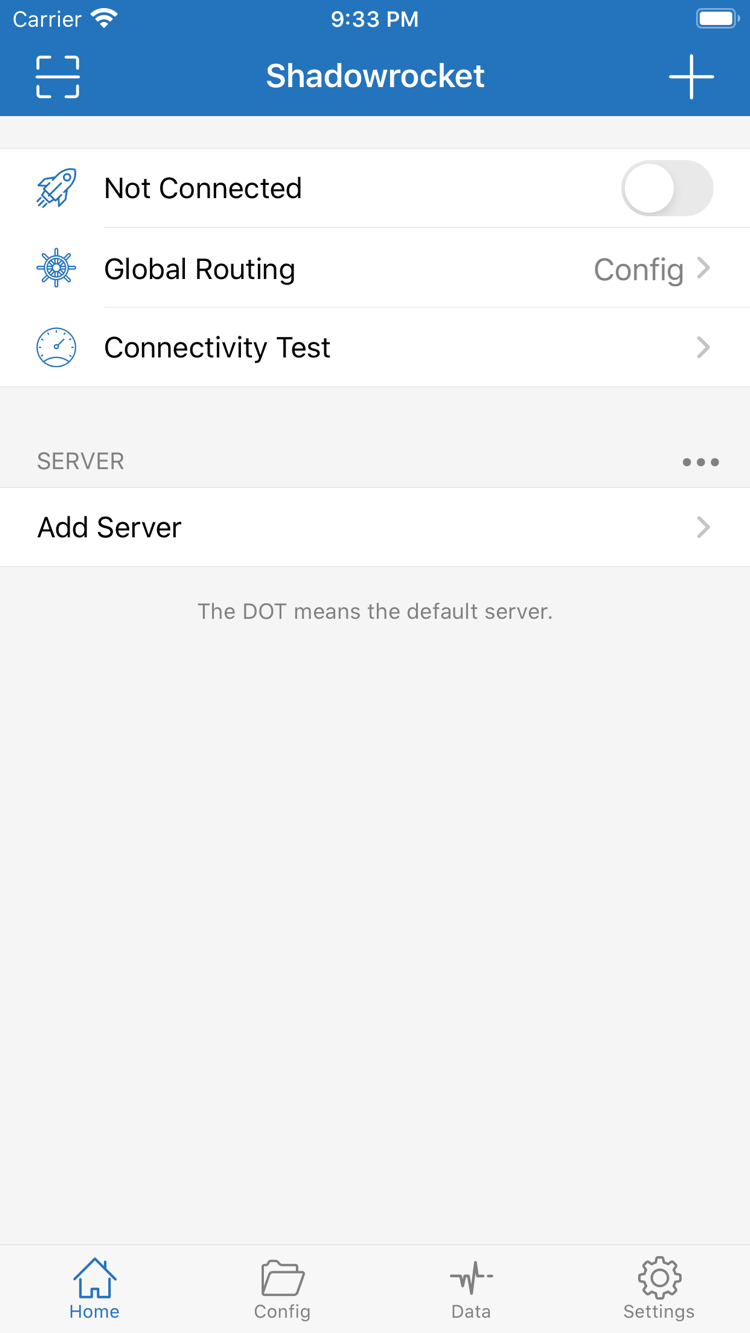
On Home, tap Add Server to open the setup screen. Choose Subscribe under Type, then enter the complete subscription link in URL. You can add a name to help identify it, then tap the on-screen button to finish or save. Return to Home and wait for the subscription to load. Check that server entries appear under the relevant group. If you see the subscription name but no servers, first make sure loading has finished, then check that the link is valid.
When copying a link, keep its existing query parameters intact and avoid adding spaces, line breaks, or other text before or after it. Subscription links may contain access credentials, so treat them as sensitive personal information and don’t post them in public comments or screenshots. If loading fails, don’t keep adding the same link. Check its status with the provider of your existing service, then try updating it again. For group management and updates, see the Subscribe section of the Server Management Manual.
Have Details for One Server? Fill In the Fields for Its Type
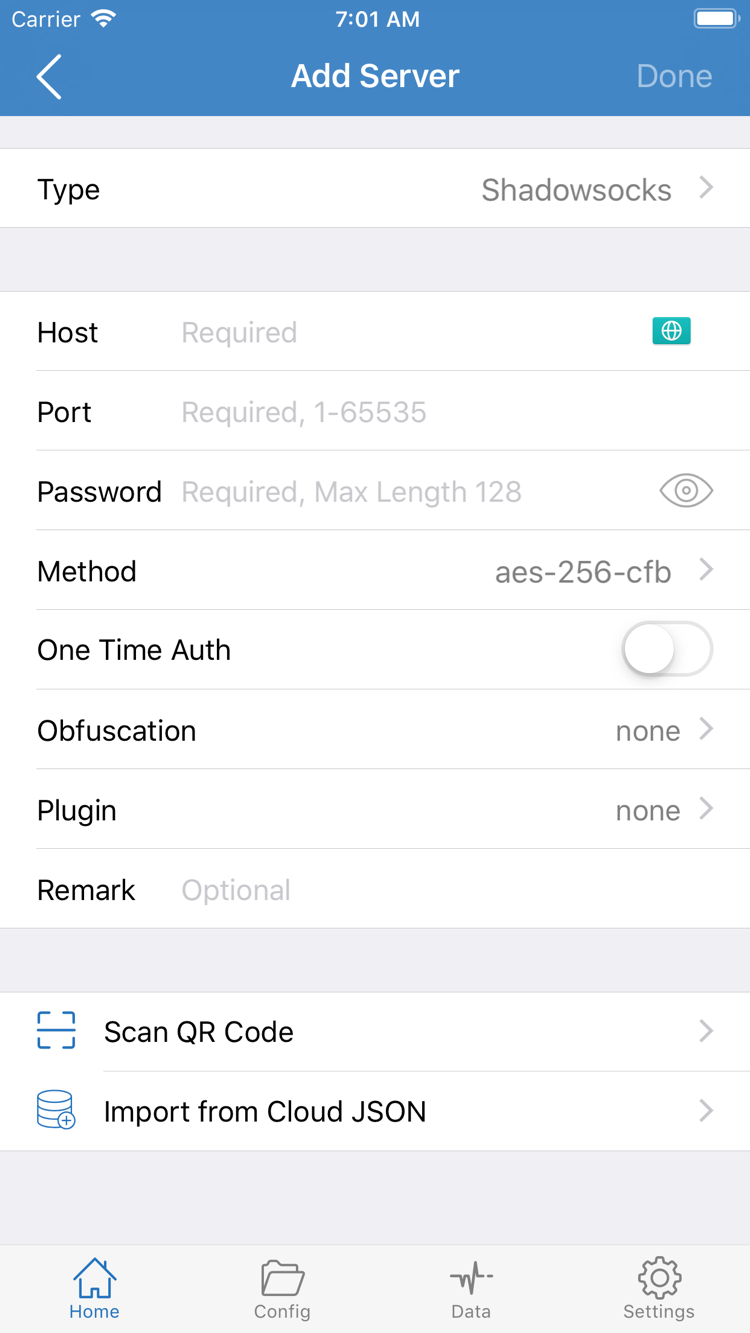
From Home, open Add Server, choose the Type that matches your existing details, and fill in the corresponding fields. In the example shown, enter the server address in Host, the port in Port, authentication details in Password, and select Method according to the original parameters. The fields vary by Type. Authentication and transport settings for protocols such as VMess, VLESS, and Trojan are not interchangeable. If a field is unclear, check the glossary rather than guessing.
If your existing details include TLS, a transport method, or other additional parameters, check each one carefully. The server address and the name used for TLS may serve different purposes; don’t change them to the same value just to make them look consistent. If you have a QR code, use Scan QR Code. Allow camera access and scan the full code, then check the Type and key fields after import. Import from Cloud JSON is for data in the corresponding format, not a general-purpose way to enter subscription links.
Step complete when: Back on Home, you can see a selectable server under SERVER or a subscription group, and opening it for editing shows the expected Type and parameters. This confirms that the details have been entered, not that the server can connect. Next, decide how requests should be handled with Global Routing.
Three Global Routing modes: Choose how requests should be handled
Return to Home and open Global Routing. Before connecting for the first time, understand the difference between Config, Proxy, and Direct. This setting determines overall routing behavior; it does not select a server protocol. Changing Global Routing won’t complete missing server details or make an unavailable server work. Note the current selection before changing it so you can restore the previous behavior after testing.
- Config: Requests are handled according to the selected configuration file and its rules. Different requests may match actions such as PROXY, DIRECT, or REJECT, so they don’t all follow the same route.
- Proxy: Routes requests through a proxy as an overall mode. You can use it to test the selected server without rule-based routing as a factor, but the server details and connection conditions must still be valid.
- Direct: Connects directly to the destination. If a website opens in this mode, that does not verify the selected proxy server.
If you only want to test a newly added server, temporarily choose Proxy, then switch back to Config to check your routing after the connection test. This is a troubleshooting sequence, not a recommendation to keep using one mode. If you see Scene in the menu, you don’t need to configure it for this first connection. Review it later if it’s relevant to how you use the app.
Check the Configuration File Before Using Config
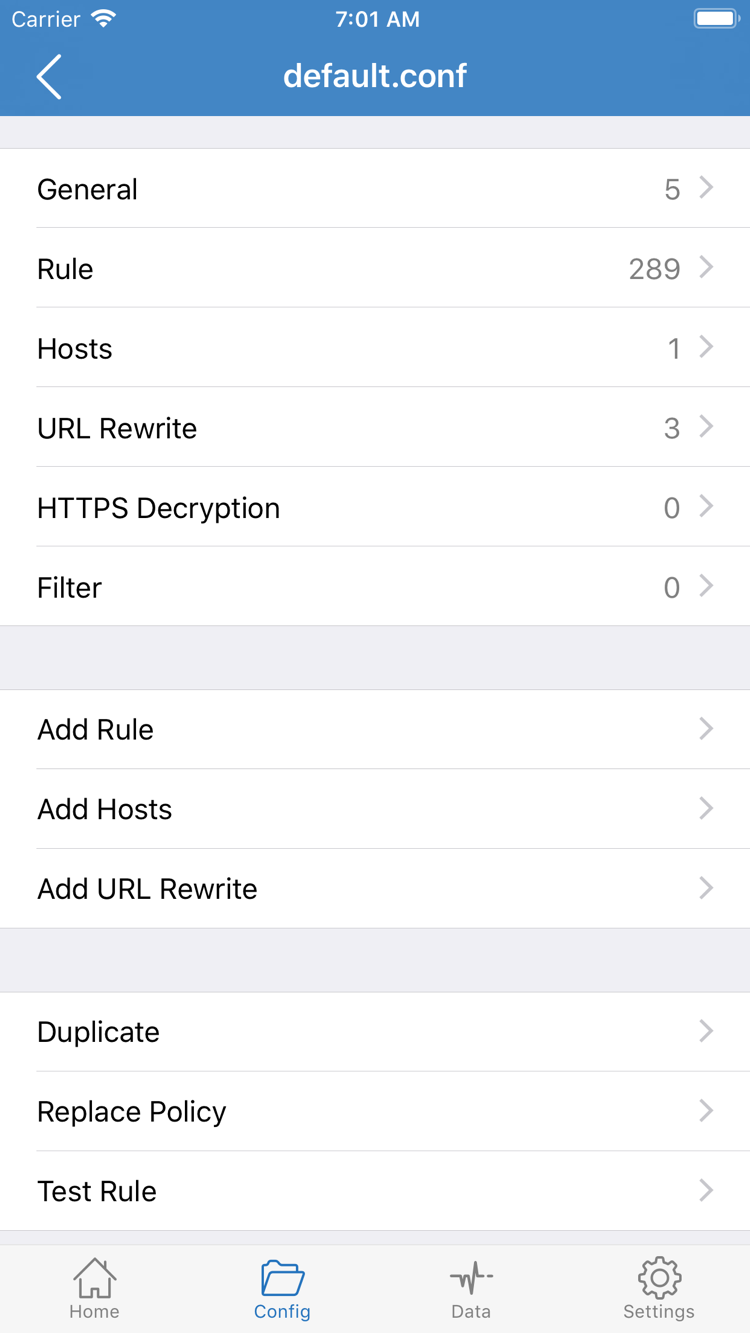
Before using Config, open Config and check which configuration file is selected, then review its rules. The official screenshot shows the configuration editor, where General, Rule, Hosts, URL Rewrite, and HTTPS Decryption organize different settings. This is not the Global Routing menu on Home. Add Rule means you can add a rule; you don’t need to add one just to connect.
You don’t need to edit every section during initial setup or enable HTTPS Decryption to connect. Start by reviewing the existing Rule conditions and actions, especially the handling of requests that don’t match any rule. Rule order affects which rule applies: a broad rule near the top may prevent more specific rules below it from handling requests. For keywords such as DOMAIN-SUFFIX, IP-CIDR, and FINAL, check the glossary.
Step complete when: Back on Home, you know whether Config, Proxy, or Direct is selected. If Config is selected, you also know which configuration file is in use. Confirm this before selecting a server and connecting, so you don’t change rules while trying to diagnose the connection.
Select a server on Home: Turn on the connection and approve the VPN configuration
Under SERVER or a subscription group on Home, tap the server you want to use and check for the selection mark beside it. Note the difference between selecting a server and opening it for editing: the edit screen lets you review its settings, but doesn’t make it the active server. Return to the list and check the selection mark, then review Global Routing to make sure it matches your test plan.
If the list contains multiple subscription groups, expand the one you want and choose a server whose source and purpose you can identify. Don’t test multiple servers at once or keep switching between them during your first connection. Keeping one server selected makes Connectivity Test results easier to interpret. If you’ve just updated a subscription, also check that the previously selected server is still listed.
Approve the VPN Configuration the First Time You Connect
Tap the connection switch at the top of Home. When connecting for the first time, the system may ask to let Shadowrocket add a VPN configuration. Read the prompt, make sure you initiated the action, then follow the system steps to allow it and complete any required device authentication. This permission lets the app create the relevant network configuration. It doesn’t verify that the remote server is available, create a subscription, or fill in missing authentication details.
If you canceled the permission prompt, return to Home and turn on the switch again to bring it up. If the switch immediately turns off, don’t tap it repeatedly. Check the prompt from the app or system and confirm whether the authorization process is complete. If device management policies restrict this setting, check the device’s management requirements instead of repeatedly changing the server password.
After granting permission, return to Home and check whether the status at the top has changed from Not Connected and whether the switch stays on. The system status bar or Control Center may show a VPN status, depending on the device and system interface. Don’t rely on an icon alone to confirm success; check the connection switch, app status, and the results of the next test together.
Step complete when: The selected server is clear, system permission is granted, and the connection switch stays on. If the switch stays on but websites still won’t load, don’t delete the configuration yet. An established connection and successful access to a destination are separate things to check. Verify both with Connectivity Test and a real-world request.
Connectivity Test and real-world access: Check them separately to confirm the connection works
Keep the connection switch on at Home, tap Connectivity Test, and wait for the result. Don’t change servers or Global Routing during the test, or the results may reflect different conditions. A successful test means the route checked by that test completed the relevant operation; it doesn’t mean every website, protocol, or app will work. A failed test should also be considered alongside the test method and actual access.
Next, open a website or app you actually need to use and try again. Don’t rely on content that may already be cached: refresh the page or open content that hasn’t loaded yet. Start with one specific destination, then check another. If only one service fails, narrow the issue down to that destination, its rule, or the service itself rather than importing every server again.
Interpret Test Results in the Context of the Current Mode
In Direct mode, successful access only shows that the direct route works; it doesn’t verify the proxy server. In Config mode, a destination may match DIRECT, PROXY, or REJECT, so a page opening doesn’t necessarily mean it went through the selected server. To check routing, review the visible connection records in Data and compare the destination with the action shown. Follow what the app actually displays.
If the same destination works in Proxy but fails in Config, check the selected configuration file and its rules first instead of changing authentication details. If both modes fail, continue with the server and device network checks in the next step. Change one condition at a time, then rerun Connectivity Test and try the same destination so you can identify what made a difference.
Don’t confuse the latency test in the server list with Connectivity Test on Home. Latency results depend on Test Method and current network conditions; a single number doesn’t show whether a server will work for every real-world request. A successful first-connection check means the switch stays on, the test result is understood, and destination access matches the expected behavior for the current Global Routing mode and rules.
Step complete when: You can distinguish the app’s connection status, the test result, and actual access to a destination. If all three match expectations, you’re done with the first-connection setup. For subscription management, updates, or backups, see the Server Management Manual later; there’s no need to change all the settings now.
Troubleshoot connection failures by layer: Change one condition at a time
When something fails, note the selected server, Global Routing mode, network in use, and whether the issue is that the switch won’t stay on, the test fails, or only a particular destination can’t be reached. Each symptom points to a different place to check. Keep your existing setup and narrow down the cause in the order below. Don’t start by deleting the app or clearing all subscriptions; that removes useful context for troubleshooting.
First, Check Your Network and Selected Server
Temporarily turn off the connection and check that your device’s network can access services that normally work without a proxy. If your network requires an access sign-in, complete that first. Then return to Home and confirm that the selected server is the one you expect, not an older entry with the same name or one from another subscription. Turn the connection back on and test again. When switching between Wi-Fi and cellular, keep data usage in mind, leave other settings unchanged, and check whether the issue occurs on only one network.
Next, Check the Subscription and Protocol Settings
A failed subscription import and a server connection failure are different issues. For an import problem, check that the link is complete, review the loading result, and check the status of your existing service. For a connection problem, open the relevant entry from Add Server and check its Type, Host, Port, authentication details, and any required transport or TLS settings. Incorrect capitalization, extra spaces, or missing fields can affect the connection. Don’t substitute settings intended for a different protocol. Before changing an entry created by a subscription, find out whether an update will overwrite your changes; see the Server Management Manual for details.
Finally, Check System Time, Rules, and Test Settings
For connections using TLS, check that your device’s date, time, and time zone are correct; enable the system’s automatic settings if needed. If Proxy works but Config doesn’t, return to Config and check the rule order, the action for the destination, and the final handling of requests. If only one destination fails, check whether the destination itself is working before assuming the client settings are wrong.
In Settings, you can find options such as Test Method and Diagnostics. Check the test method and repeat the comparison using the same method so you’re not comparing results from different settings. Diagnostics can help narrow down an issue, but don’t treat every entry as proof of a fault. Before saving diagnostic details or sending them to the provider of your existing service, hide sensitive information such as subscription links, server addresses, and authentication details.
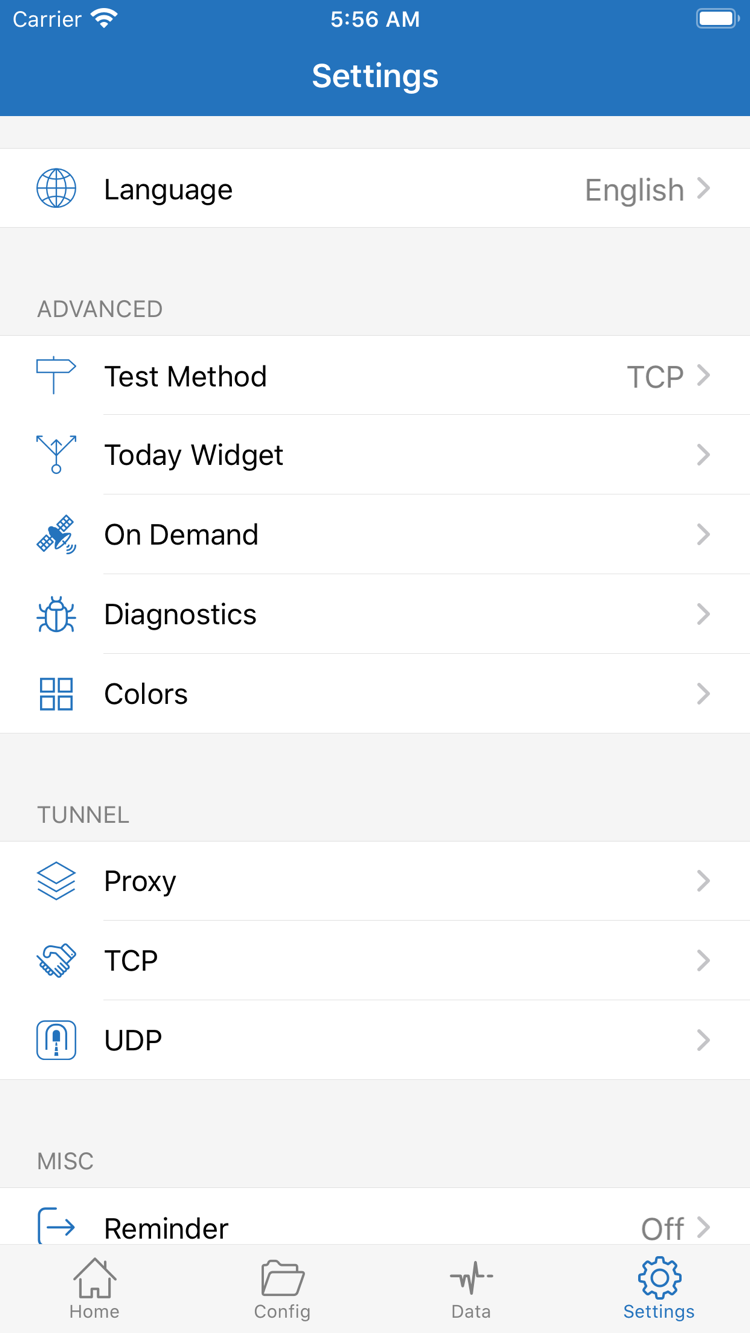
Before your first successful connection, leave automatic behavior settings such as On Demand unchanged and use the manual switch on Home to verify the basic steps. If you adjust On Demand later, check network changes and connection triggers separately so an automatic reconnect isn’t mistaken for a manual switch that failed. After testing, restore your usual Global Routing mode and check access to your destination again.
Step complete when: You’ve narrowed the issue down to a layer such as your device’s network, authorization, server settings, rules, or the destination service—or you can reproduce the failure consistently. For help with multiple subscriptions, updates, ordering, or backups, see the Server Management Manual. If you only need help with a term in the interface, check the glossary; there’s no need to reconfigure the whole app just to understand one term.